AI Photo Editor
An AI photo editor you run with words: describe a new image, or add photos and say what to change. Your first image is free, no sign-up.
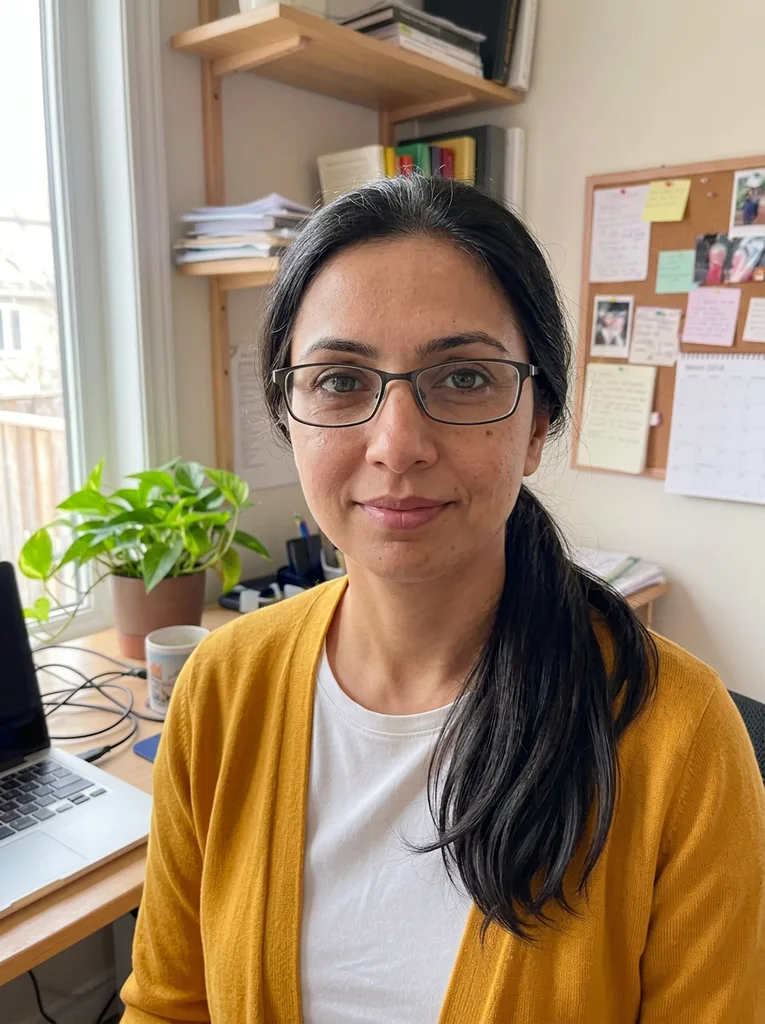 AI Image HumanizerTarget the waxy skin, glow and haze on an AI image with the instruction already written, aiming to keep subject and pose.
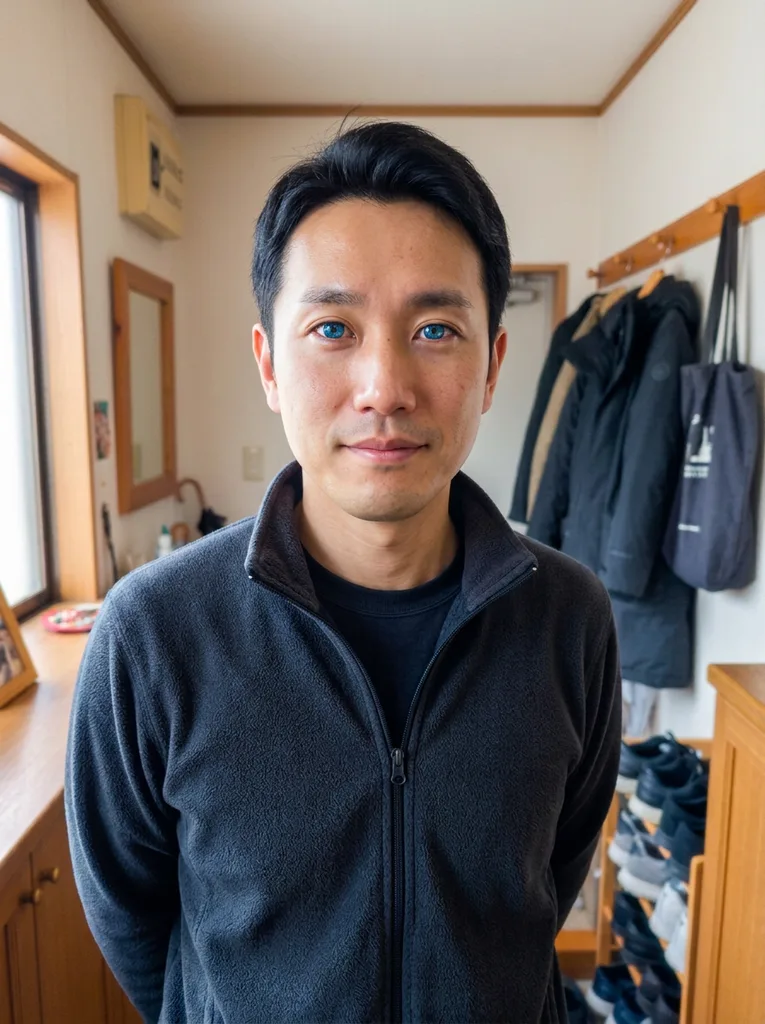 Make Image Look Less AIMake image look less AI with the lightest pass: tone down glow, neon color and waxy skin, aiming to keep the style. First image free, no sign-up.
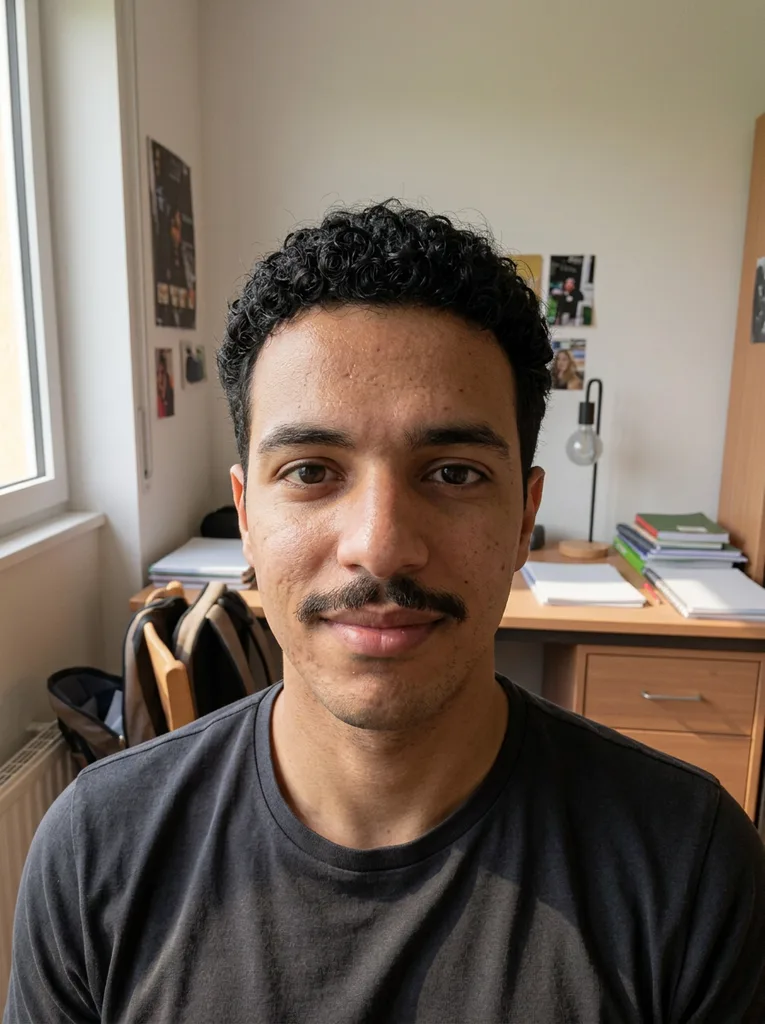 Image RealisticImage realistic redraws anime, 3D renders, game screenshots and AI art toward a photo, with real skin, light and lens, aiming to keep pose and layout.
 4K Image UpscalerThis 4K image upscaler enlarges one photo to a 2K, 4K or 8K target, and the panel shows how much before you start. Your first image is free, no sign-up needed.
Examples
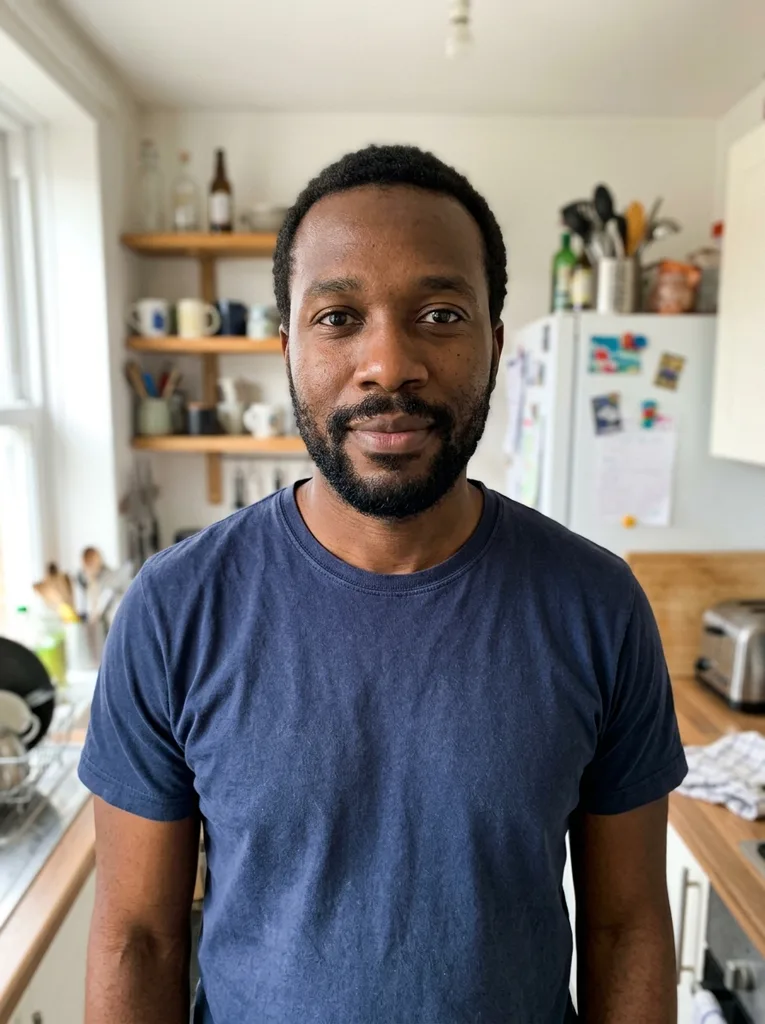 Before
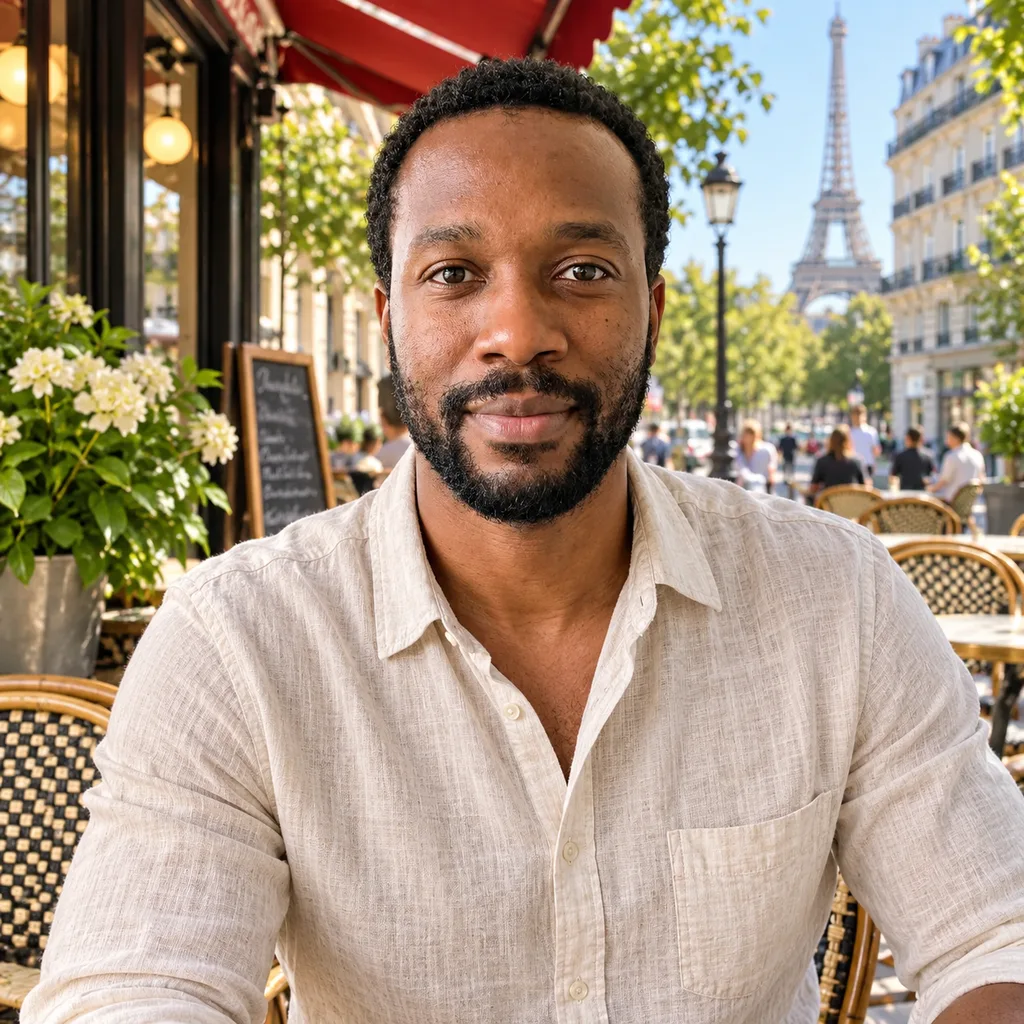 After
What you can do with an AI image editor
Each of these is one sentence in the text box. The prompt chips under it start you off.
Change the background with an AI photo editor
Upload a portrait and ask for a beach at sunset or a city street at night. The tool aims to keep your face the same; check the result against your original.
Remove people or clutter
Say what should go, such as the people in the background. The model redraws that area, so look closely at the spot where they stood before you download.
Make a headshot
Ask for a professional headshot with a plain grey backdrop, or a navy suit and white shirt. Add a photo of yourself and say what to keep.
Build a product photo from text
Describe a ceramic mug on a linen tablecloth in soft morning light. No photo is needed to start.
Restyle a photo
Turn a snapshot into a watercolor painting, or brighten it and fix the colors with a single sentence. Describe the look, not the tool.
Combine up to 3 photos
Add two or three images and describe how they fit together, for example one person in another photo's scene.
How to use the AI photo editor
- 1
Describe your image or edit
Type what you want in the AI photo editor's text box, up to 2000 characters, or click one of the six prompt chips to fill it in.
- 2
Add photos, pick a model and a shape
Add 0 to 3 JPG, PNG or WebP files up to 10 MB each. With no photo you get a new image; with photos you get an edit. Then choose a model and an aspect ratio.
- 3
Generate, compare and download
Press Generate. The result appears beside the tool, with a Download button under it. Your first image needs no account, and the result area shows an example until you run it.
Why edit photos with this AI photo editor
Five model families in one AI photo editor
Choose GPT Image (the default), Nano Banana, Seedream, Qwen Image or Z-Image from the same panel, then a version under Quality. Each draws in its own way, and Z-Image only creates from text.
Create or edit in one place
Leave the photo slot empty to create an image from text. Add a photo and the same prompt becomes an edit.
Up to 3 photos in the AI photo editor
Combine several pictures in a single request instead of editing them one by one.
No brush, no mask
You describe the change in plain words and the model redraws the picture. Fine details can differ from your original, so always compare before you download.
Many shapes, up to 4K
Pick Auto, square, portrait or wide shapes such as 9:16, 16:9 and 21:9 to fit a post, a story or a banner; each model lists the shapes it supports. Guests get 1K, and signed-in users can go up to 2K or 4K, depending on the model.
One free image to start
Your first image is free with no sign-up and no credit card. After that, the editor asks you to sign up and use credits.