4K Image Upscaler
This 4K image upscaler enlarges one photo to a 2K, 4K or 8K target, and the panel shows how much before you start. Your first image is free, no sign-up needed.
- First image free
- No sign-up
- 2K, 4K or 8K
- Never used for training
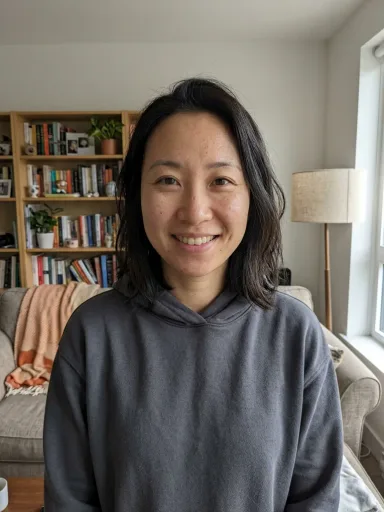 Before
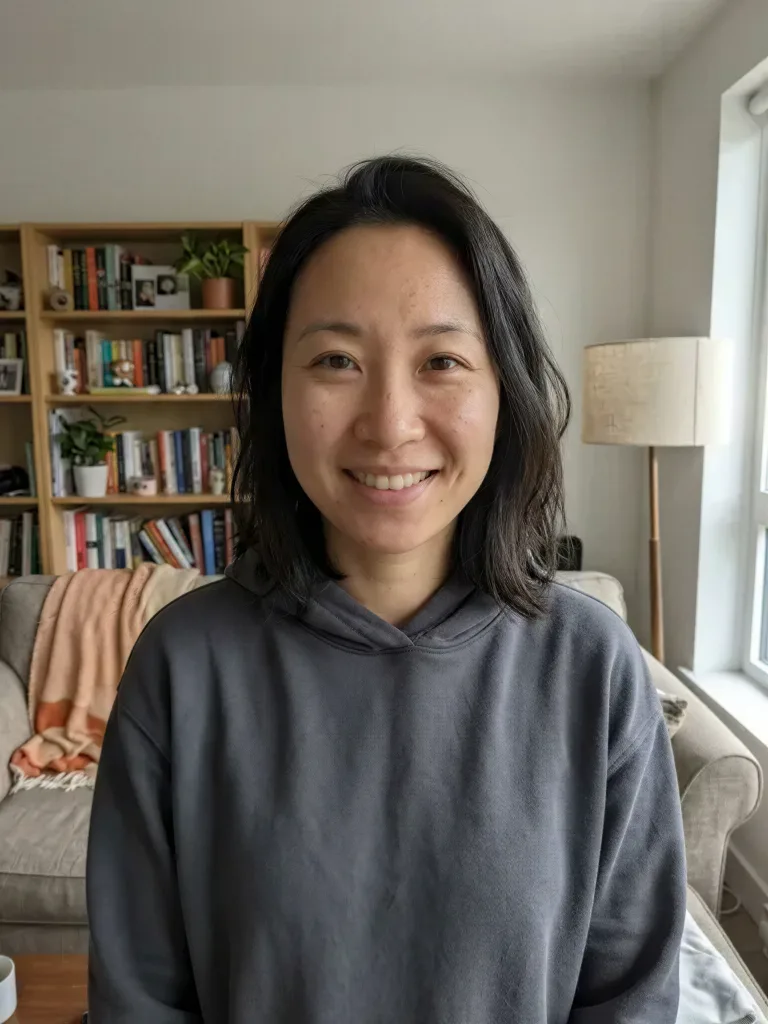 After
Example result. Upload your photo to make yours.
How to use the 4K image upscaler to upscale to 4K
- 1
Upload one image
Drop in a JPG, PNG, WebP or HEIC up to 10 MB. Photos, AI images and artwork all work, one image per run.
- 2
Read the panel, pick 2K, 4K or 8K
4K is selected by default. The panel shows how much your photo will be enlarged, or that it will only be enhanced, and greys out sizes it is too large for.
- 3
Press Upscale Image, then download
The result appears next to your original so you can compare. Download it as it is: the file is whatever the model returns.
Upscale image to 4K: three real runs
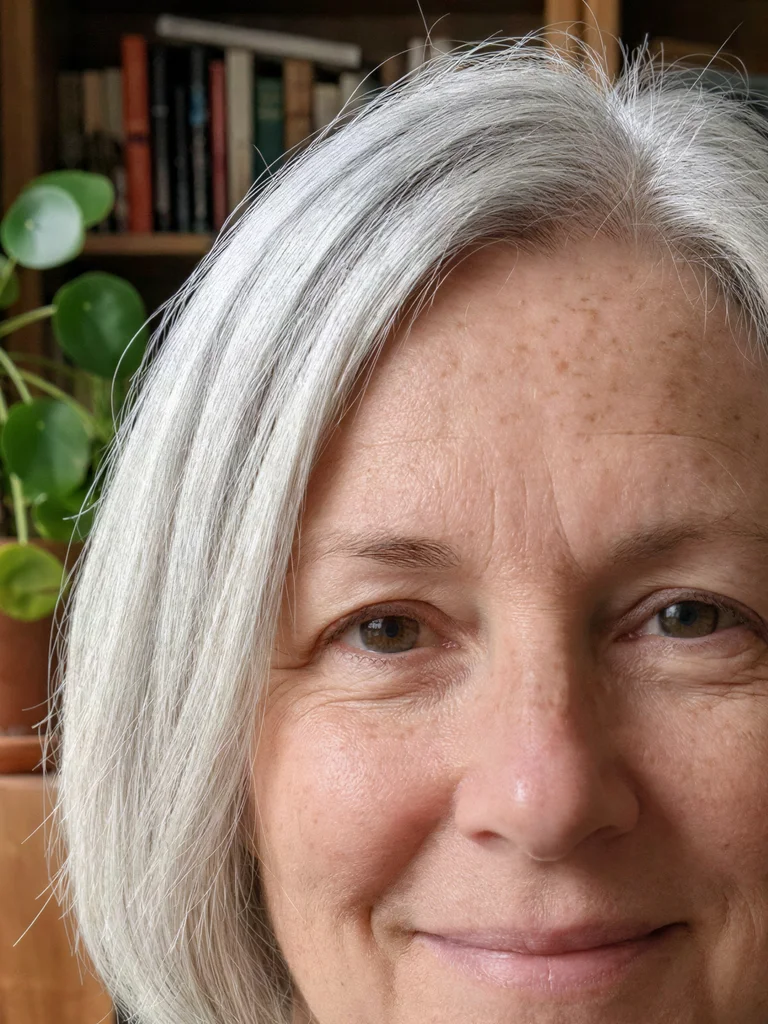
Each pair is one run at the 4K setting, not retouched afterwards. Both sides show the same 3:4 crop. Before is the original enlarged with plain Lanczos resizing, After is the upscaler's result.
 Before
 After
Upscale a small selfie, 360 × 480, to 2880 × 3840
This selfie was 360 × 480 pixels. At the 4K setting it was enlarged 8× to 2880 × 3840. In this run the hair strands and freckles came out sharper than in the stretched original, and it is the same face.
- 360 × 480
- 8×
- Portrait
 Before
 After
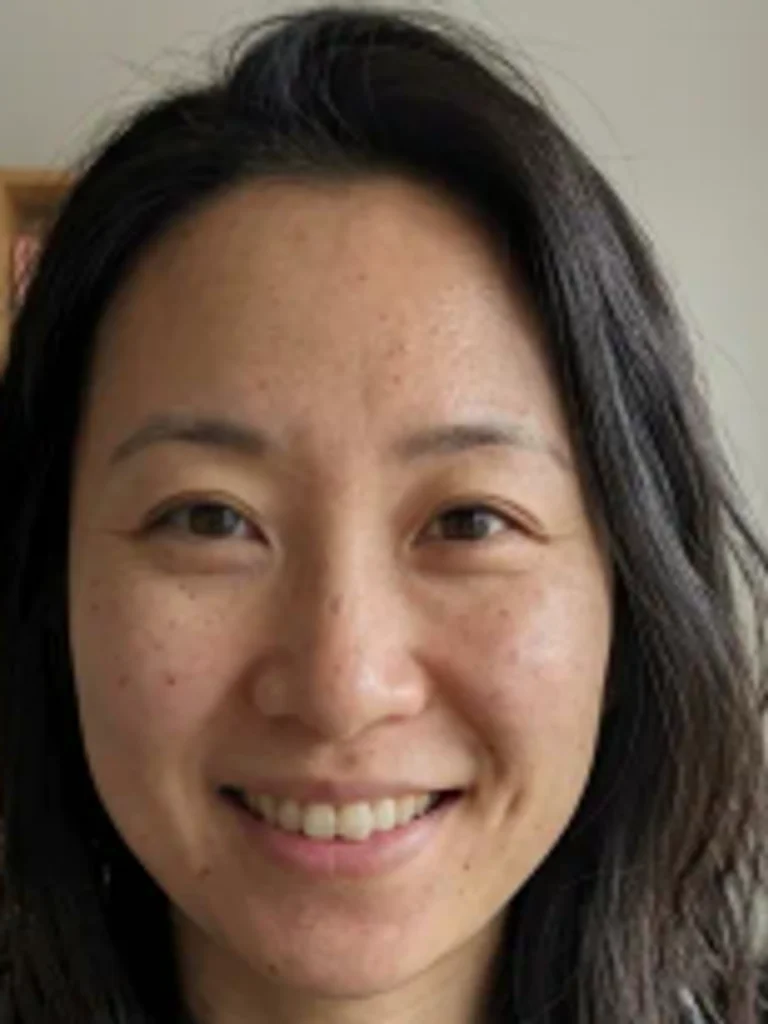
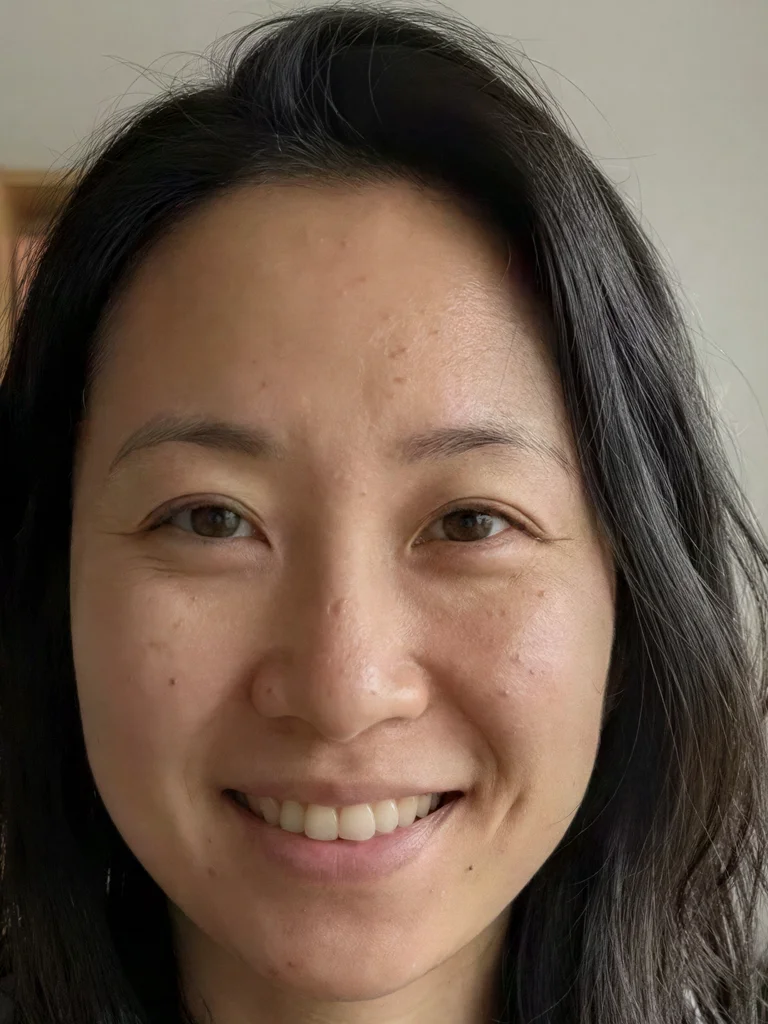
Enlarge a tiny portrait, 384 × 512, to 3072 × 4096
This 384 × 512 portrait is the page's main example. At the 4K setting it was enlarged 8× to 3072 × 4096. The eyes, hair and teeth are sharper. The skin came out a little smoother than the original, so compare a face with your source before you use it.
- 384 × 512
- 8×
- Smoother skin
 Before
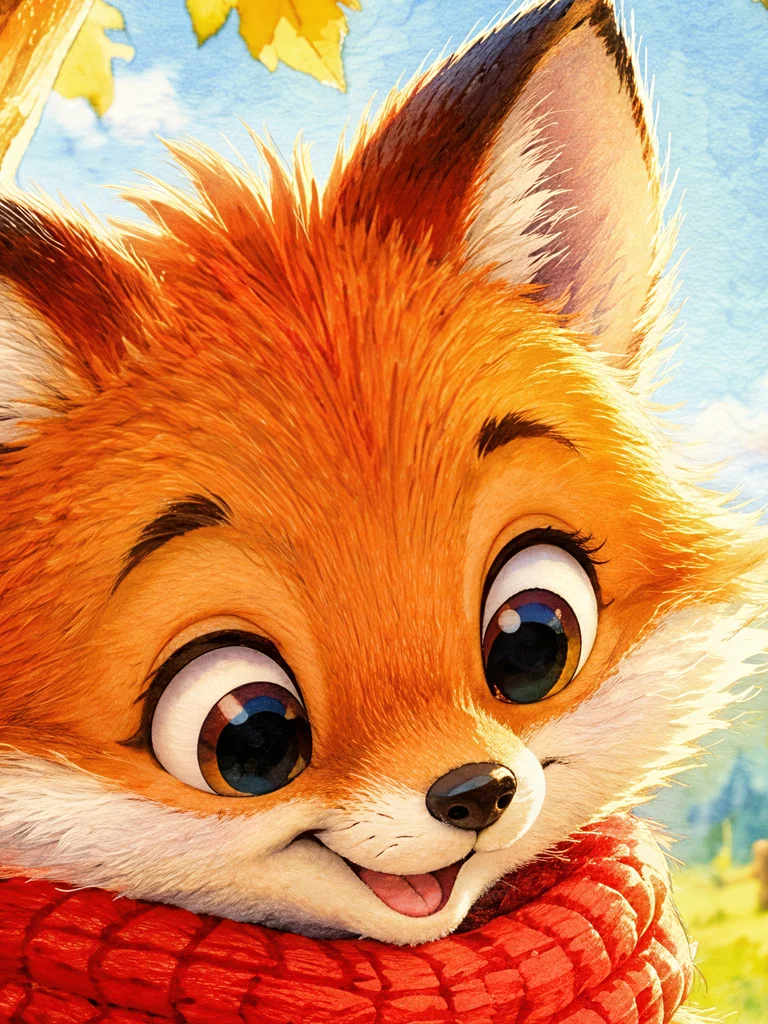 After
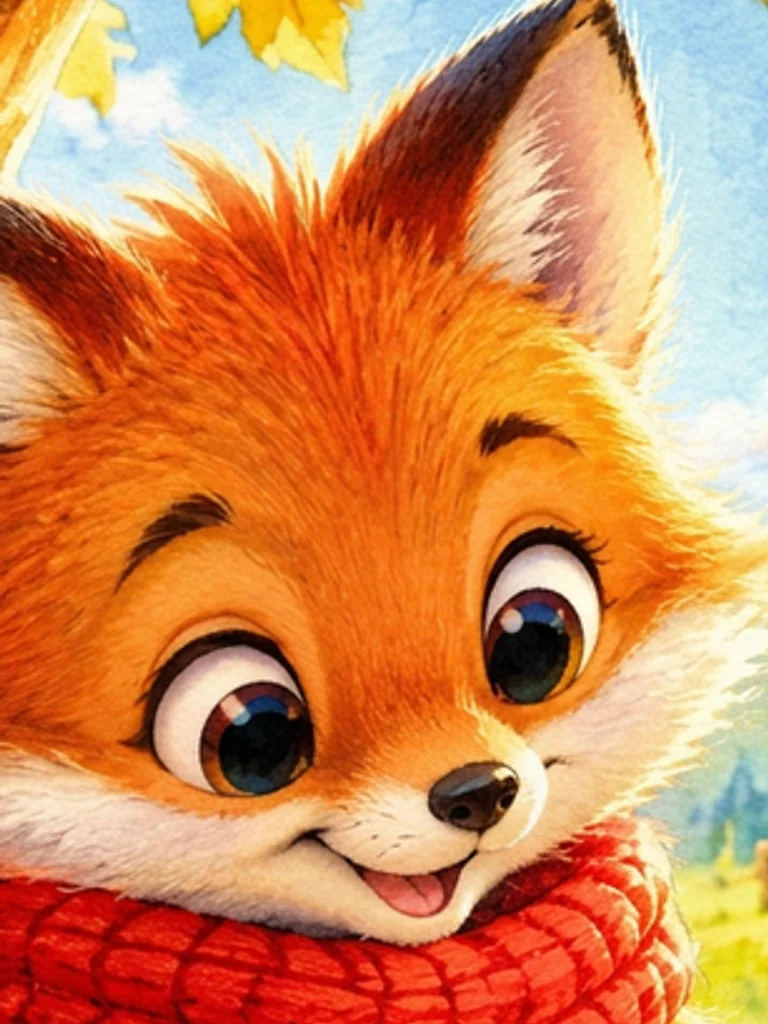
Upscale a 1K illustration to 3072 × 4096
An AI-made watercolor fox at 768 × 1024, about 1K, which is a common size for AI images. At the 4K setting it was enlarged 4× to 3072 × 4096. Eyes, whiskers and fur edges are crisper than in the stretched original. It is the same drawing, and no photo look was added.
- 768 × 1024
- 4×
- AI illustration
4K image upscaler: six things to know before you upscale
From what 4K means to what our three runs showed.
4K is a pixel count
3840 × 2160 on TVs and monitors is about 8.3 million pixels; 4096 × 2160 in cinema is about 8.8 million. On this page 4K is a size setting, not a quality grade.
Resizing stretches, AI redraws
Plain resizing makes the pixels you have bigger, so edges go soft. The upscaler draws new detail at the larger size, which is a guess, not a recovery.
The factor follows your photo
The AI picks 1×, 2×, 4× or 8×. Once your photo is in, the panel shows the factor and result size and greys out sizes it is too large for.
What our runs gave
At the 4K setting: 360 × 480 became 2880 × 3840 (8×), 384 × 512 became 3072 × 4096 (8×), 768 × 1024 became 3072 × 4096 (4×). All three were 3:4.
Free at every size
Your first image is free at 2K, 4K or 8K, with no sign-up. After that, the credits for the size you pick are shown before you press the button.
What 4K means in print
Pixels divided by DPI give inches. Our 3072 × 4096 result has the pixels for a 10.2″ × 13.7″ print at 300 DPI, or a 20.5″ × 27.3″ poster at 150 DPI.
Where people upscale an image to 4K
Any picture that is right but too small for where it is going.
AI images at 1K
Many AI images come out around 1K. Our 768 × 1024 watercolor fox came back 4× larger with crisper eyes and fur edges, still the same drawing.
Small portraits and selfies
A 360 × 480 selfie came back at 2880 × 3840 with sharper hair and freckles. Check the face against the original before you share it.
Illustrations and artwork
Line work and edges need pixels on a large canvas. After the run, check outlines and flat color areas against your original.
E-commerce product photos
Small supplier shots and thumbnails give a store page little to zoom into. Upscale them, then check labels, small text and logos, which the upscaler redraws.
Real estate and property photos
Listing pages show photos large. Upscale a small room or exterior shot, then check signs, house numbers and window detail against the original.
Prints and posters
Print size follows pixels: at 300 DPI, 3072 × 4096 covers about 10″ × 14″. Work out the size you need first, then pick 4K or 8K.
4K image upscaler vs plain resizing vs regenerating
Three ways to get a bigger picture, and when each one fits.
| This upscaler | Plain resizing | Regenerating larger | |
|---|---|---|---|
| Starts from | Your image | Your image | A prompt in your generator |
| How it gets bigger | AI redraws it at 2K, 4K or 8K | Stretches the pixels you have | Makes a new image |
| Detail | Adds plausible detail | No new detail, edges go soft | New detail in a new picture |
| Faces and text | Can change: compare | Stay the same, only softer | A different image |
| Cost to try | First image free, then credits | Free in most editors | Your generator plan |
| Fits best when | You need more pixels of this picture | A slightly larger file is enough | You don't need this exact picture |
More AI photo tools from IVJ
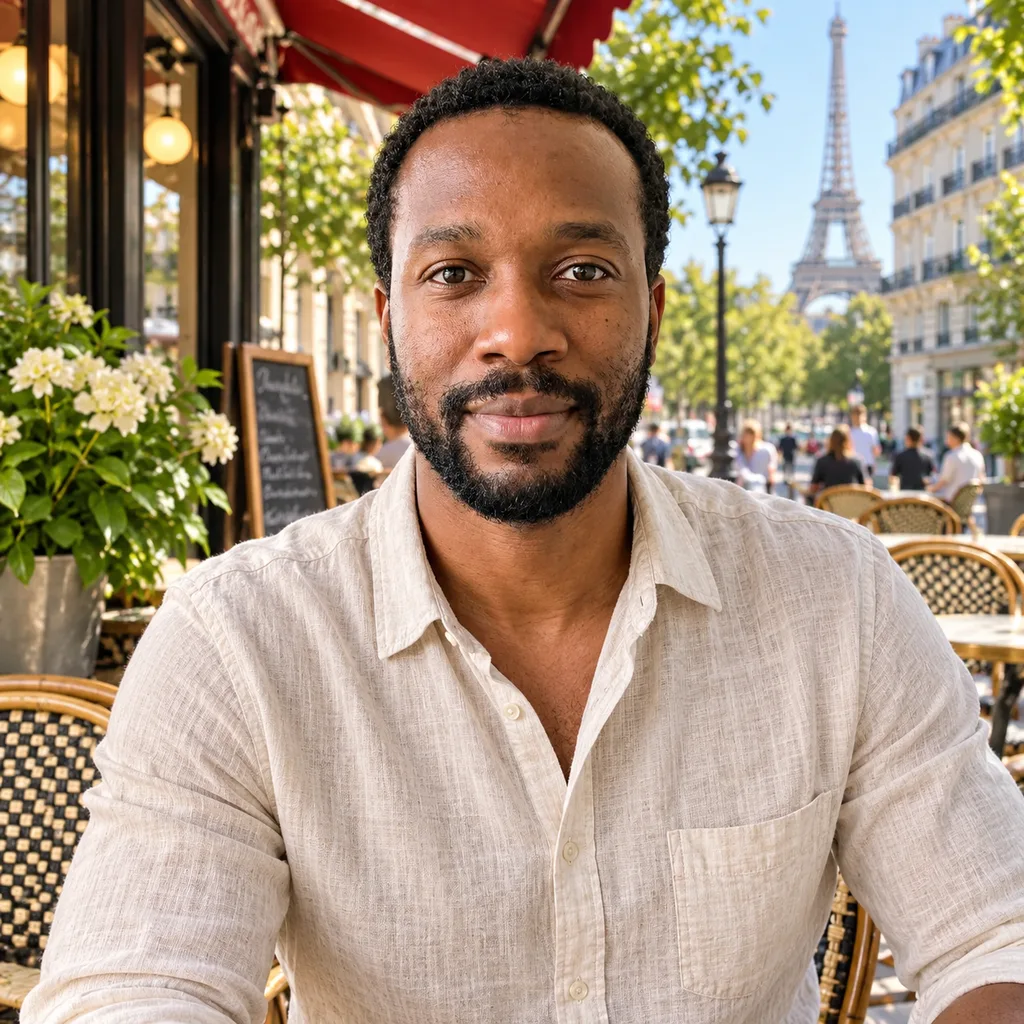 AI Photo EditorAn AI photo editor you run with words: describe a new image, or add photos and say what to change. Your first image is free, no sign-up.
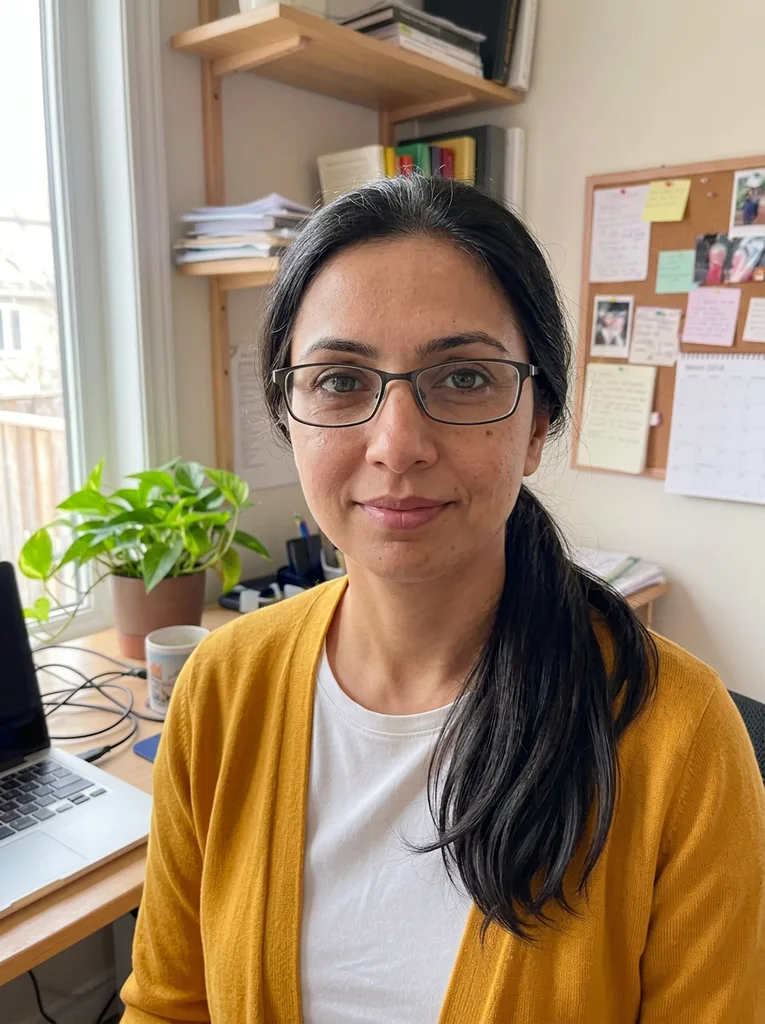 AI Image HumanizerTarget the waxy skin, glow and haze on an AI image with the instruction already written, aiming to keep subject and pose.
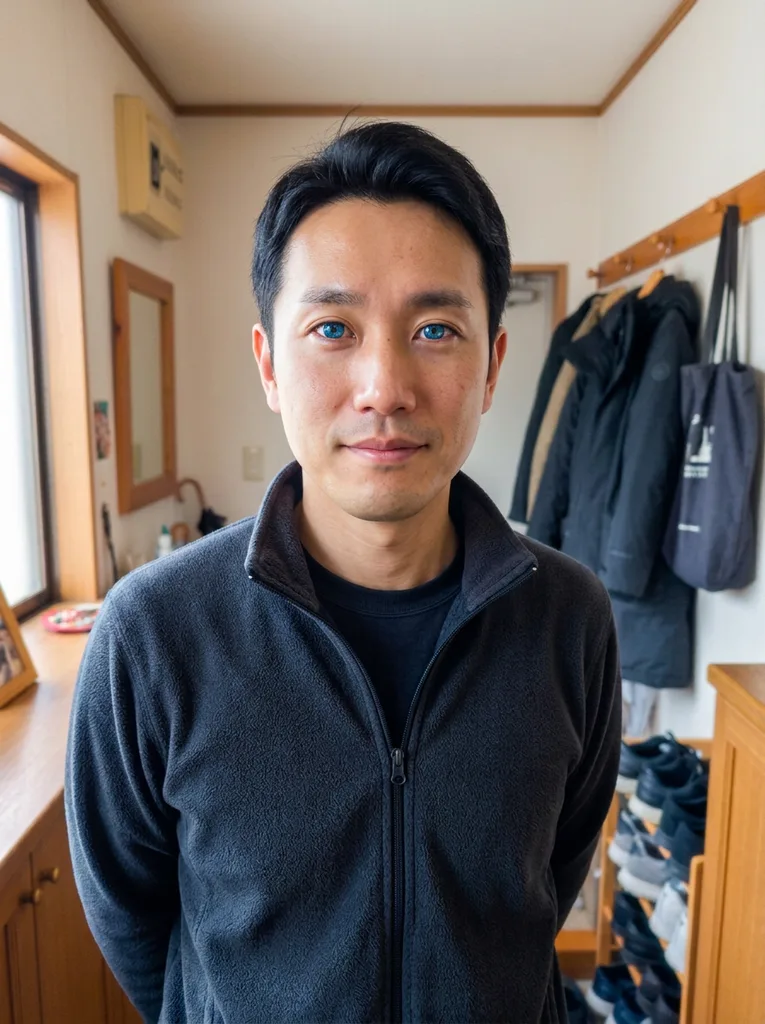 Make Image Look Less AIMake image look less AI with the lightest pass: tone down glow, neon color and waxy skin, aiming to keep the style. First image free, no sign-up.
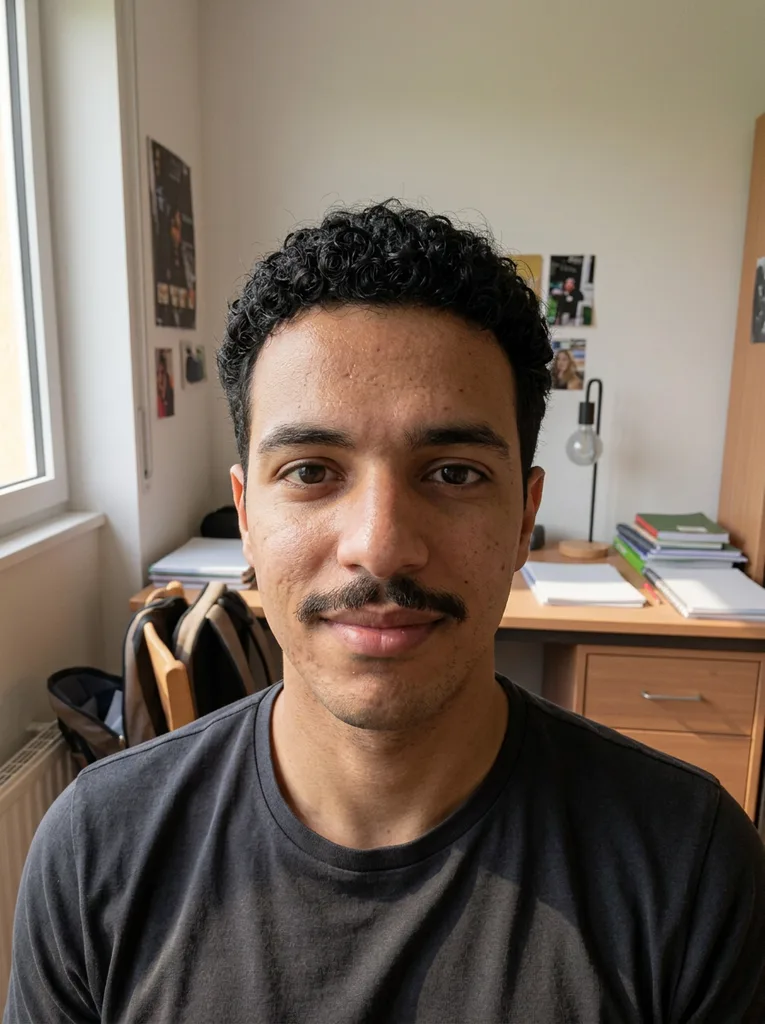 Image RealisticImage realistic redraws anime, 3D renders, game screenshots and AI art toward a photo, with real skin, light and lens, aiming to keep pose and layout.